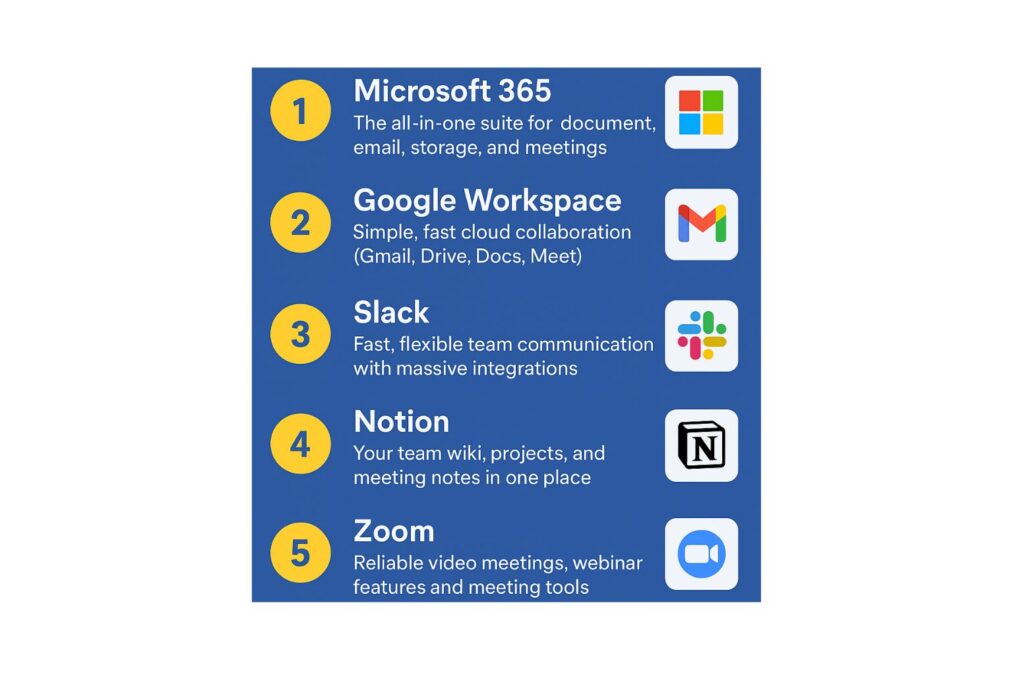
Remote and hybrid work isn’t a bonus anymore — it’s the baseline. The right tools let you keep momentum when you’re traveling, cut down context-switching, and make collaboration actually painless. Below are five apps I recommend for corporate/office users who want to be productive anywhere. Each entry explains what it does, why it helps when you’re on the move, quick setup tips, and one downside to watch for.
1) Microsoft 365 — The all-in-one suite for document, email, storage and meetings
Why it matters: Microsoft 365 bundles Word, Excel, PowerPoint, Outlook, Teams and OneDrive into a single ecosystem that syncs across desktop and mobile — great when you need to edit files offline, jump into a video call, or access a shared folder from a phone. Microsoft keeps adding AI features (Copilot) and mobile improvements that make working on the go smoother. Microsoft+1
Best for: Organizations already standardised on Office formats or that need enterprise-grade security and admin controls.
Travel/WFH win: OneDrive + autosave means you can switch devices without losing work; Teams handles meetings and chat in one app.
Quick setup tip: Install the Microsoft 365 mobile app (or Teams + OneDrive) and enable offline files for any key documents you’ll need while offline. office.com
Watch out for: Licensing costs and admin complexity for larger firms.
2) Google Workspace — Simple, fast cloud collaboration (Gmail, Drive, Docs, Meet)
Why it matters: Google Workspace is built around cloud-first collaboration: real-time editing in Docs/Sheets/Slides, powerful Gmail on mobile, and Meet for video calls. Google’s Gemini AI and Workspace integrations now help summarize threads and speed up drafting — useful when you need rapid context while traveling. Google Workspace+1
Best for: Teams that prioritise lightweight cloud workflows, fast sharing, and minimal device setup.
Travel/WFH win: Everything lives in Drive — open and edit from any browser or device; Meet works well on low-bandwidth connections.
Quick setup tip: Use Drive’s offline mode for Docs/Sheets you’ll edit on planes and pin important files in the mobile app. Google Workspace
Watch out for: Some enterprises prefer Microsoft’s on-prem features and deeper Windows integrations.
3) Slack — Fast, flexible team communication with massive integrations
Why it matters: Slack is the “work chat” layer that keeps teams aligned without long email threads. Channels, threads, app integrations and searchable history make it ideal for real-time collaboration across time zones. Slack’s mobile apps are optimised for quick updates and status changes. Slack+1
Best for: Teams that need lightweight, immediate communication and lots of third-party integrations.
Travel/WFH win: Quick async updates, file previews and integrations (calendar, task tools) let you triage work from a phone between flights.
Quick setup tip: Install Slack mobile, set custom Do-Not-Disturb windows for flights/timezones, and connect your calendar app for meeting context. Slack
Watch out for: Notification overload — be deliberate with channel membership and notification settings.
4) Notion — Your team wiki, projects, and meeting notes in one place
Why it matters: Notion combines docs, databases, kanban boards and calendars. It’s great for internal knowledge bases, meeting notes, project trackers and lightweight CRMs — all accessible on mobile. Notion’s meeting features and AI meeting notes help you capture decisions and action items while they’re fresh. Notion+1
Best for: Teams that want a central, flexible workspace to organize knowledge, projects and SOPs.
Travel/WFH win: Use Notion for meeting prep and to pull up project context quickly before a call or client meeting, even on a phone.
Quick setup tip: Create a standard meeting-note template and a “Today” dashboard so you always have quick access to your action items and travel-critical docs. Notion
Watch out for: Over-customisation can create messy pages — keep templates simple.
5) Zoom — Reliable video meetings, webinar features and meeting tools
Why it matters: Zoom remains a top choice for clear video conferencing, easy recording, breakout rooms and mobile meeting controls — all important for client calls and internal check-ins while traveling. Zoom’s mobile app and feature set are purpose-built for reliable meetings on varied networks. Zoom+1
Best for: Teams that run frequent client demos, webinars, or need robust meeting controls like breakout rooms and high-quality recording.
Travel/WFH win: Join from low-bandwidth locations; record and auto-transcribe meetings for catch-up later.
Quick setup tip: Use the Zoom mobile app plus the “Join by phone” fallback for unreliable data hotspots, and enable cloud recording for important sessions. Zoom+1
Watch out for: Security settings must be configured (waiting rooms, passcodes) for public or client-facing meetings.
Quick comparison & how to pick (one-line guide)
- If your company already uses Office files + needs enterprise controls: Microsoft 365. Microsoft
- If you want lightweight cloud-first collaboration: Google Workspace. Google Workspace
- If real-time chat + integrations are the priority: Slack. Slack
- If you want a single place for docs, notes, and lightweight PM: Notion. Notion
- If meetings and webinars are mission-critical: Zoom. Zoom
Quick implementation checklist for a travel-ready stack
- Install mobile apps for your chosen tools and sign into corporate SSO. (MS/Google/Slack/Notion/Zoom apps available on iOS & Android). office.com+1
- Enable offline access for key docs (OneDrive/Drive/Notion). Microsoft+1
- Use calendar integration so meetings and time zones sync automatically across tools. Google Workspace
- Set notification rules before travel (DND, priority channels). Slack
- Record meetings when appropriate and save action items to Notion or task tool. Notion+1
Final tips (so you actually stay productive)
- Pack a portable charger and a small travel hotspot if you rely on mobile data.
- Keep a meeting summary template (Notion) to capture decisions and owners within 10 minutes after each call. Notion
- Use AI assistants inside Workspace/Microsoft/Notion to summarize long threads — huge time saver. Windows Central+1