Do you ever pick up your phone to check one thing, only to find yourself scrolling mindlessly 30 minutes later? You’re not alone. The average person spends over 4 hours a day on their phone.
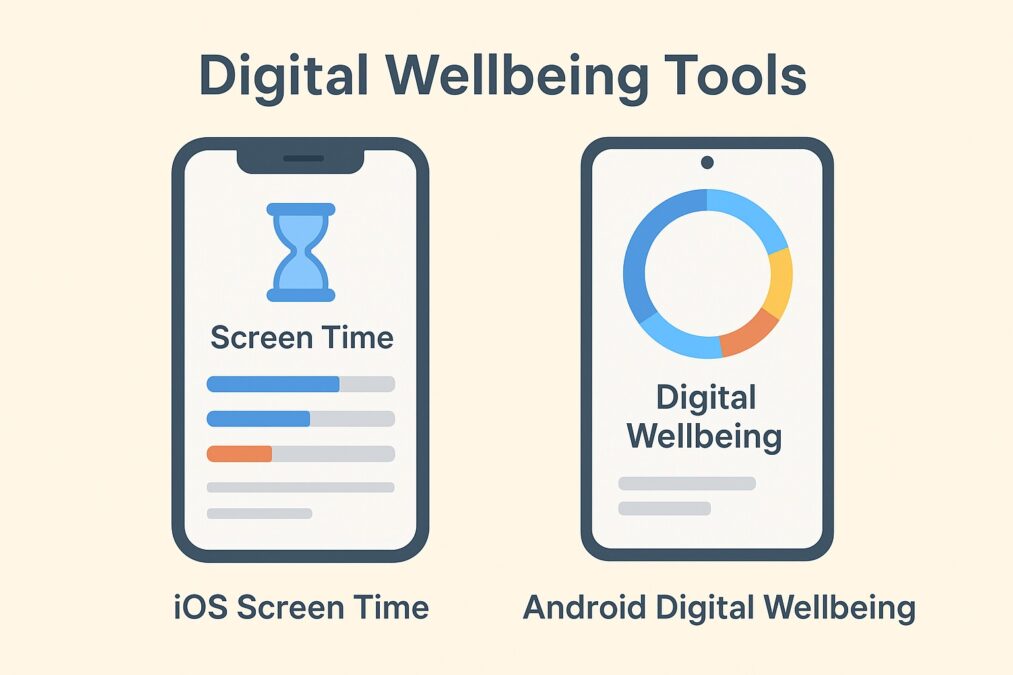
But what if the key to breaking this cycle was already hidden in your device’s settings? Both Apple and Google have built powerful, free tools to help you understand and manage your habits: Screen Time on iOS and Digital Wellbeing on Android.
This guide will walk you through each platform’s features, show you how to set them up effectively, and help you decide which settings will make the biggest difference for your digital health.
Why Use Built-in Tools Instead of an App?
Before we dive in, you might wonder why you should use these instead of a third-party app. The key advantages are:
- Deep System Integration: They track usage accurately across the entire system.
- No Performance Hit: They run efficiently in the background.
- Parental Controls: They are essential for managing a child’s device.
- It’s Free: No subscriptions or in-app purchases.
iOS Screen Time: A Deep Dive
Apple’s Screen Time provides detailed analytics and robust controls. Here’s how to master it.
1. How to Find It: Go to Settings > Screen Time.
2. Key Features & How to Use Them:
- See Your Activity: Tap “See All Activity” to view daily and weekly reports of your app usage, pickups, and notifications.
- Set App Limits: This is the most powerful tool. Tap “App Limits” > “Add Limit.” You can limit entire categories (like Social Networking or Games) or select specific apps. Pro Tip: Set a 30-minute daily limit for your most distracting apps. The warning you get can be a powerful pause.
- Downtime: Schedule a period where only apps you choose to allow and phone calls will be available. Perfect for your sleep schedule.
- Communication Limits: Control who your children can communicate with during the day and downtime.
- Content & Privacy Restrictions: Lock down explicit content, iTunes purchases, and privacy settings.
3. The “Weakness” and Fix: Screen Time can be bypassed by entering the device passcode. For parental controls, set up a separate Screen Time Passcode that your child doesn’t know.
Android Digital Wellbeing: A Deep Dive
Google’s approach is visually intuitive and focuses on “disconnecting.” The exact name and location can vary slightly by manufacturer (Samsung calls it “Digital Wellbeing and Parental Controls”).
1. How to Find It: Go to Settings > Digital Wellbeing & parental controls.
2. Key Features & How to Use Them:
- Dashboard: Get a pie chart of your daily app usage and phone pickups.
- Focus Mode: This stellar feature lets you pause selected distracting apps for a set period. Unlike a simple limit, they are completely grayed out. Pro Tip: Create a “Work Focus Mode” that pauses social media, news, and games.
- Bedtime Mode: Turns your screen to grayscale and silences notifications to help you wind down. You can schedule this.
- App Timers: Set daily time limits for individual apps. Once the timer runs out, the app icon is grayed out for the rest of the day.
- Parental Controls: Link a child’s account to your family group to manage their apps, screen time, and content filters.
Head-to-Head Comparison: Which is Better for You?
| Feature | iOS Screen Time | Android Digital Wellbeing |
|---|---|---|
| Data Presentation | Very detailed, list-based reports. | Simple, visual dashboard with a pie chart. |
| Star Feature | App Limits & Communication Limits (great for families). | Focus Mode (excellent for work/study blocks). |
| Wind-Down Tool | Downtime (blocks apps). | Bedtime Mode (grayscale + silence). |
| Customization | Highly granular for categories and apps. | Simpler, more visual interface. |
| Best For | Users who want deep analytics and strong parental controls. | Users who want a simple, visual system with a killer “focus” feature. |
Actionable Tips for Everyone
No matter your OS, start with these steps:
- Audit for One Week: Just enable tracking and check your reports. The data alone is often shocking enough to inspire change.
- Identify the Culprit: Is it one social media app? YouTube? Target that specifically.
- Start Small: Don’t lock everything down at once. Set one realistic limit (e.g., 45 mins on Instagram).
- Schedule Downtime/Bedtime Mode: Protect your sleep. Start with a one-hour window before bed.
- Use “Wind Down” Cues: Place your phone in a drawer during Focus Mode or Downtime.
Conclusion: You’re in Control
Technology should serve you, not the other way around. iOS Screen Time and Android Digital Wellbeing are powerful, underutilized tools that put you back in the driver’s seat. You don’t need willpower alone—use the systems built into your device to create healthier digital habits.
Spend 10 minutes today exploring these settings. Your future self, with more time and focus, will thank you.