
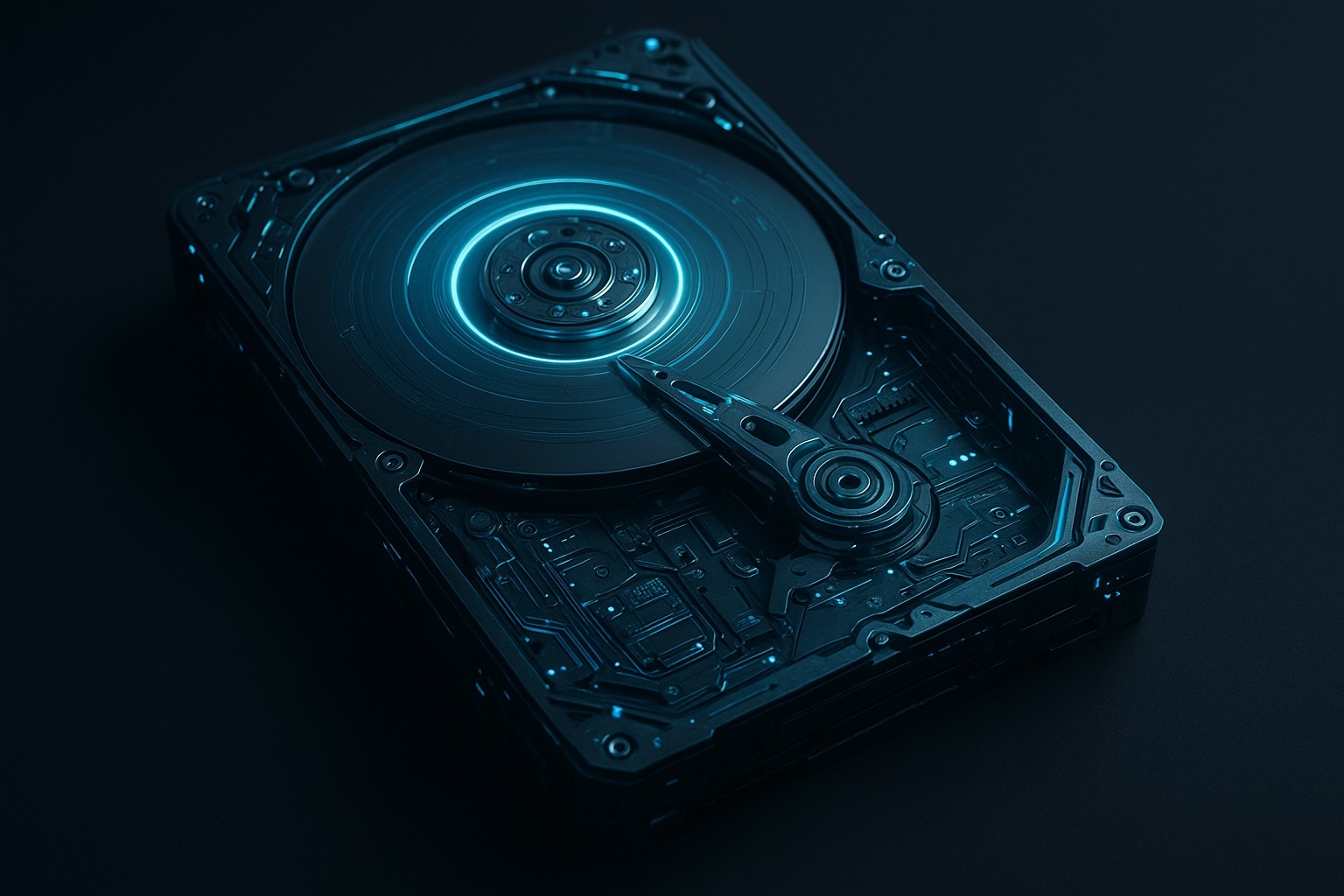
Getting rid of an old computer can feel like a big task, especially if you still have sensitive data on it. Many people wonder if they should physically destroy it—or if there are safer, smarter ways to ensure your personal information doesn’t fall into the wrong hands. Here’s a practical guide.
1. Don’t Panic, Don’t Pour Water on It
Throwing water on your motherboard or hitting your computer with a hammer may physically destroy the device—but it’s dangerous and not guaranteed to erase your data. Water can cause chemical reactions that make it toxic, and parts like RAM and hard drives can still store recoverable data.
Safer approach: focus on data destruction, not random physical damage.
2. Backup Anything Important
Before doing anything, make sure you have saved anything you might still need:
- Documents, photos, videos
- Software keys or licenses
- Emails or contacts
Use an external hard drive, cloud storage, or a USB stick for backups.
3. Remove Valuable Parts
If you plan to sell, donate, or recycle your computer, removing high-value parts is a good idea:
- RAM (memory sticks)
- SSD/HDD (storage drives)
- Graphics card
These can be reused, sold, or given away.
4. Wipe Your Hard Drives Securely
Simply deleting files or emptying the Recycle Bin is not enough. You need to make the data unrecoverable.
Options:
- Software-Based Wipe (Low-Level Format / Secure Erase)
- Tools like DBAN (Darik’s Boot and Nuke) or CCleaner Drive Wiper can overwrite your hard drive multiple times.
- For SSDs, use the manufacturer’s Secure Erase utility to reset it safely.
- Windows Built-in Reset
- Windows 10/11 has “Reset this PC → Remove everything → Clean data” option. This overwrites the disk and removes all personal files.
- Linux Tools
- Tools like
shredorwipecan securely erase drives if you’re comfortable using Linux.
- Tools like
5. Physical Destruction (Optional)
If you still want to destroy the drive physically:
- Remove the drive from the PC.
- Use a hammer to shatter the platters inside an HDD.
- For SSDs, crushing is less effective; rely on software secure erase instead.
- Always wear safety goggles and gloves.
Important: Avoid unsafe methods like pouring water or fire—they’re dangerous and unnecessary.
6. Recycling or Donating
Once your data is secure:
- Donate usable parts to family or charities.
- Recycle responsibly—look for e-waste recycling centers in your area.
✅ Key Takeaways
- Focus on securely erasing data rather than random destruction.
- Use software tools for wiping drives or Windows built-in reset.
- Remove valuable or reusable components.
- Recycle or donate responsibly—don’t dump electronics in the trash.
Conclusion:
You don’t need to destroy your old computer dangerously to get rid of it. With proper data wiping and responsible disposal, you can safely recycle, donate, or sell parts without risking your privacy. Taking a few extra steps ensures your personal information stays safe while giving your old PC a new life—or a safe retirement.