
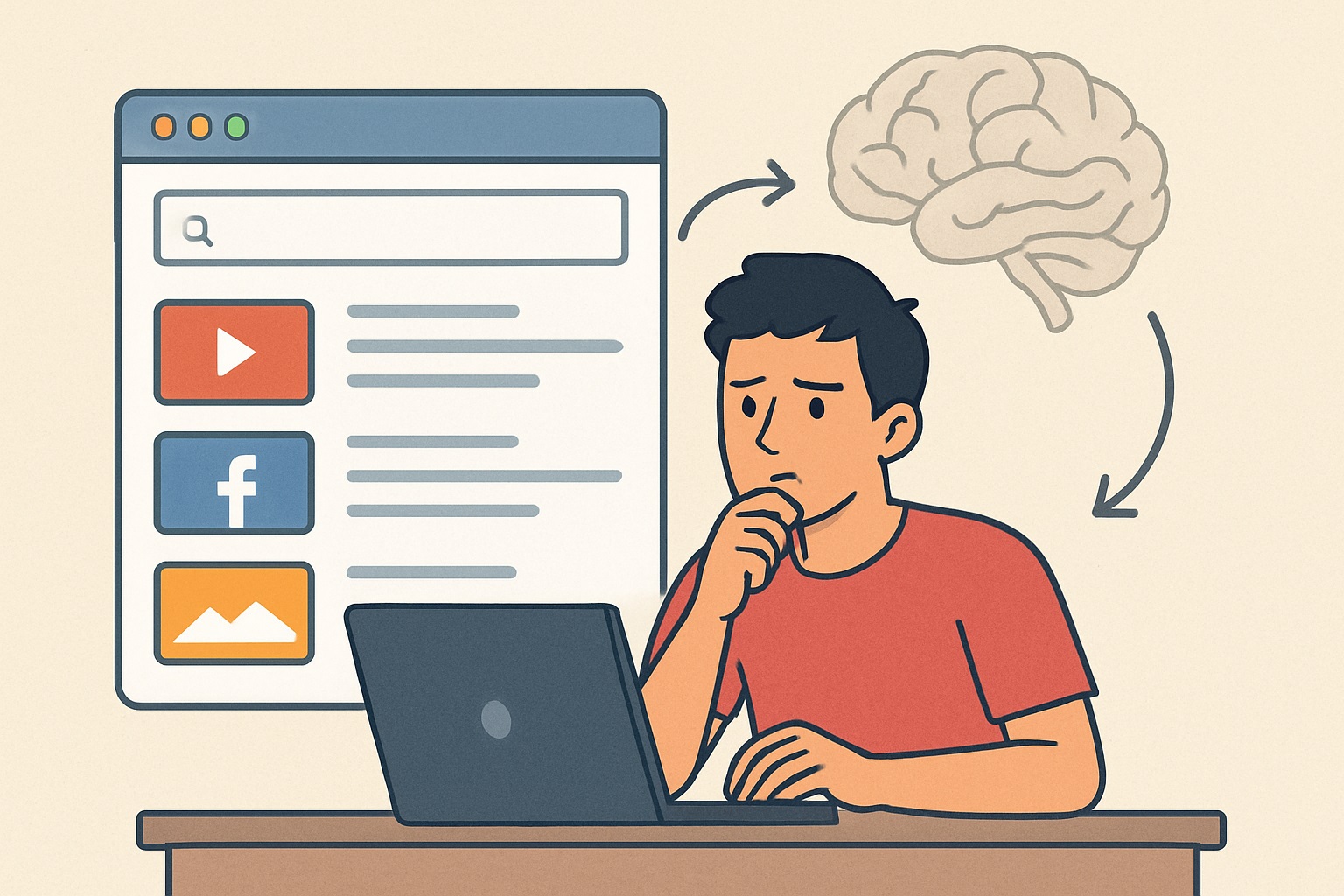
Have you ever opened your browser and found yourself typing the same websites without even thinking?
Maybe it’s YouTube, Facebook, Instagram, Reddit, or a news site.
This autopilot browsing habit happens to millions of users — and it leads to distractions, wasted time, and reduced focus.
The good news?
You can break this pattern with a few simple browser tweaks and habit changes.
In this guide, you’ll learn:
- Why your brain opens the same sites automatically
- How to stop Chrome (or any browser) from loading sites at startup
- How to remove auto-suggests and shortcuts
- Tools to block distracting sites
- How to break the habit for good
Let’s dive in.
Why You Keep Opening the Same Websites Without Thinking
This behavior isn’t a lack of discipline — it’s a habit loop.
It works like this:
- Trigger: You open your browser
- Automatic Response: Your brain instantly types the websites you open most
- Reward: You get quick entertainment, news, or stimulation
Over time, your brain turns this into an unconscious routine.
That’s why you don’t even notice when you open those websites — the pattern is automated.
How to Stop Websites From Opening Automatically
This begins with simple browser settings.
1. Change Your Browser Startup Settings
In Google Chrome:
- Open Settings
- Search for “On startup”
- Select:
✔ Open the New Tab page
❌ Avoid “Continue where you left off”
❌ Avoid “Open a specific set of pages”
This ensures your browser starts clean every time.
2. Remove Website Shortcuts From Your New Tab Page
Chrome shows frequently visited sites on your home screen.
To remove them:
- Open a new tab
- Hover over the site thumbnail
- Click the three dots → Remove
This reduces visual triggers.
3. Delete Auto-Complete Suggestions
If typing just one letter opens a site, remove it from suggestions:
- Start typing the URL
- Highlight the suggestion using arrow keys
- Press Shift + Delete
This resets the browser’s memory of that page.
Tools to Block or Limit Distracting Websites
If you want stronger control, use website blockers.
Top Browser Extensions:
- StayFocusd — Set daily time limits
- BlockSite — Block websites entirely
- LeechBlock NG — Very customizable
- Freedom (premium) — Blocks sites across all devices
These tools help break unwanted browsing habits by adding friction or blocking the trigger completely.
How to Stop Yourself From Mindlessly Visiting Those Sites
Beyond browser settings, you also need to break the mental habit loop.
1. Add a “Pause Moment” Before Clicking
When you start typing a website, ask yourself:
“Do I need this, or is it just autopilot?”
This 2-second interruption disrupts the routine.
2. Replace the Habit With Something Better
Instead of opening distracting sites, redirect your energy to something useful:
- A to-do list
- A productivity dashboard
- A notes app
- A learning site
Your brain still gets the quick “start task” feeling — but with purpose.
3. Remove Bookmarks for Distraction Sites
The fewer shortcuts your brain sees, the less you’ll use them.
Delete bookmarks for sites you want to avoid or rename them to something like:
- “Why do you need this?”
- “Focus first.”
This adds a micro-pause that stops mindless clicking.
Why Breaking the Habit Matters
Stopping autopilot browsing helps you:
✔ Increase focus
✔ Save time
✔ Reduce distractions
✔ Improve productivity
✔ Stay intentional online
If you’re trying to stay disciplined, work more efficiently, or simply reduce screen time, breaking this pattern is a powerful first step.